Skip to forum content
Alfred's Serif Users' Forums
An independent forum site for members of the Serif software community
You are not logged in. Please login or register.
Active topics Unanswered topics
Tips and Announcements
Automated signup has been disabled for these forums. If you wish to register, please send an email to admin[at]punster[dot]me stating your preferred username.
Embedded images: Click on the  Add image to post link below the message box. Your photo will be uploaded to the postimage website and then shared here via a thumbnail link. Click on the thumbnail for a larger view.
Private messages: There is no pop-up alert for new PMs on these forums, so you need to look out for the PM link (near the top right-hand corner of any forum page) becoming bold.
HAPPY NEW YEAR!
Search options (Page 4 of 10)
Is the errant image on your master page?
Wolstan Dixie wrote:Thanks - I appreciate it.
Well I of course know not to use capitals and spaces in PagePlus page filenames, but the 'add hyperlink - file - browse your hard disk' procedure invites you to choose a Windows file which can have them with no warning - are you saying this is a fatal error or just frowned on?
The file opens correctly in my Adobe Acrobat Reader (which is quite old) - I don't have the full version of Acrobat.
How do you explain that the file opens correctly from the PagePlus browser preview of the page?
It's not a fatal error, it's just not good practice. If you fix it, it removes a possible error.
Can you attach a copy of the pdf file to your next post and then I and possibly others can have a look and see if we can determine the issue?
Wolstan Dixie wrote:Apologies - I thought 'I guess I shall have to convert them all to JPG's' implied resolved.
This is the page in question - but as you don't have the local file I can't see it is much help?
https://www.xenophon.org.uk/censusatlas.html
Clicking on Census Atlas in firefox gives me a damaged file error which is not repairable. See attached image.
Can you open the standalone version of the file in adobe? Check that you can view every page.
Another point. Your file name for the pdf and therefore the link to it, starts with a capital letter and contains spaces. the website html looks like this:
https://www.xenophon.org.uk/Copy%20of%20complete%20Atlas01.pdf
Which is not good practice. URL's can't contain spaces so they are replaced with %20. Use smallcase and rather than spaces insert _ or - so in effect, you have a continuous word.
In design view if you drag the text box off the page is the image on the page? If you then preview the page, is the image there?
You already have a pdf thread which is unresolved, and you did not answer the the last question put to you. Help works best when there is a two way dialogue. Also, why have you not provided a link to the website?
Hopefully Alfred will move this thread over to the original.
From top menu bar Properties > Site properties > Search engine > All items listed
and
Properties > Page properties > Search engine > All items listed
Richardeblack wrote:Dear All,
I usually generate my web pages in tables to have better control over the layout but have only just noticed that when I open the website, the text is not selectable in the web browser. Text in text boxes is selectable (therefore readable by accessibilty software).
Is there something I can do to make the text in the published tables selectable or will I have to go through my whole site re formatting it using text boxes.
I hope I have made my problem clear although I suspect I may not have done.
Any advice welcome.
Thank you.
Richard.
Website is belchford.org.uk
A number of your pages are images. Right click on some of them and you will see menu items about images. If you click on 'Open in a new tab' you will see the whole page. How have you saved them as images?
The attached image is how it looks when inspected.
Alchad wrote:Their is an option to add a file in File Manager BUT NOT a folder so I could updaye manually but that would be very tedious.
So two questions
)1) is there an option somewhere - I have looked and looked - which tells Webplus which files to add to File Manager when you
publish?
2) If not is there anyway to add folders to File Manager rather than individual file at a time?
Sorry if I've been very long winded in my problem/question, just hope someone has the patience to read and understand!!
Thank you
Alan C
I might be missing something here but in the File Manager image you posted there is a button called New Folder. If you want a folder in the root, highlight the topmost item and click on New Folder. Give it a name, highlight it and click on Add File and add your images.
Joe
Robert The Texan wrote:As it turns out these radiation alerts turned out to be nothing significant. These things were triggered back in the parts of the plant where the outer space deep science nuclear fuel research took place, and dweebs like myself didn't have a high enough clearance to get anywhere near these areas. Parts of the facility were much more spooky than others. Having said that, these alerts went out to all parts of the facility.
Regarding your training, your drill sergeant omitted one little detail: if you actually saw the burst flash, it likely was the last thing you would ever see even if you survived the experience. I kid thee not when I say I hate those goddamned things.
I have another tale regarding a guy I met who was a civilian working in Japan when the Japanese decided they wanted to mess up Pearl Harbor. I found his stories of life in Japan after that event and after Hiroshima and Nagasaki interesting. Again, I may have already told the tale. I can tell it again if anybody cares to hear it.
I'd like to hear it Robert. Thanks
Danzil wrote:"It sounds like you are trying to access "HTML Source" on the Master page which will show it as inactive. You need to access it on a normal page not the master. then follow the instructions/video"
THANKS YOU SOOOO MUCH. That makes since. Will Follow through now.
Last Question on this:
I just need to know if this means that I will have to do so for each page of my site to have the animation on the background of all pages?
My desire is to have one animation on the background of all of my site pages. If I can only do this by putting it on each page separately, that would slow down my site. So if that is the case, is there some kind of plug in that I can use to install the animation on my master page so that it shows on all pages? My master page size is 1024 x 3000.
No you don't need to do it on every page. Read the instructions. You paste the code in each segment i.e
<--Master A body Start-->, <--Master B body start-->
View the source code of each page of the demo file to see it in action.
Danzil wrote:I know you all are busy and probably tired of me. But I just need an answer to the below question. Or if you can refer me to someone who may be able to assist me, that would be fine. Thanks
The "HTML Source" is still inactive when I use right click "View" drop down. I don't know why or how to access 'HTML Source" to proceed. When I try to access the HTML Source by left clicking "View" the "Page HTML Source" is also not active. I need to know why, and if there is a way to access "HTML Source" to proceed. Or if there is another way to proceed.
It sounds like you are trying to access "HTML Source" on the Master page which will show it as inactive. You need to access it on a normal page not the master. then follow the instructions/video.
Robert The Texan wrote:This story simply brings to the fore the single thing that Trump seeks in an appointee: Loyalty and iron-clad support of Trumpian philosophy and his un-American, anti-Constitutional goals.
The Trump cabinet and other appointees point to only one conclusion: Utter disaster for the country, and damage to the world at large.
What's your take on Biden who has just invited Putin to participate in WW3?
Right click off the page on the background area.
Joe
tomH wrote:This has been painful to follow so, following Joe's instructions, I made a 1:38 minute tutorial https://youtu.be/VgxKFrgcK2Y that follows all of the steps in his procedure. Hope it helps.
Well done Tom.
Joe
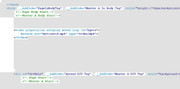
I asked : 'page body start' (white background, green text). Do you see that or is that greyed out?”
Please answer the questions when I ask them which may save a lot of to and fro. In the demo file source do you see what is in the image below? To do that in your file follow the instructions to copy and then to paste place your cursor at the right tip of the green arrow but in the white area and hit enter a couple of times. Click in the space you have just made, right click, paste.
Danzil wrote:Thank you so much for your patience with me.
It seems that I am unable to understand your instructions. But if you are also saying that if the master page is long, (and mines is very long), putting the video clip on it won't work.
Then I should ask, do you know how I can put an animated video clip on a long master page that will fill it and look normal, and not distorted? Is there a software I can use? Or do I have to find a video clip that is the same dimensions as my long master page.
If that can't be done, are you saying that the only thing I can do is use a solid color for the master page background?
What can I do to create a nice background for the site. Of must it just be solid color.
There seems to be a misunderstanding so I will clarify. You have two options with that background video:
1. The video plays in the background and the page scrolls over it
2. The video plays in the background and scrolls with the page.
Option 1. is prefered and that is how the demo file is configured. If you increase the page length in the demo and preview it, you will see how it works.
If option 2. is not suitable don't use it.
Wolstan Dixie wrote:Thanks - that works, sort of.
Unfortunately the document frame doesn't fill with the document, it just stays as when you are placing it, a box with the file name in, so it is difficult to size it correctly so the Windows? PDF reader fits; it looks disconcerting, and you can't remember what it is displaying. 'Refresh preview' button bottom right doesn't do anything. I guess I am going to have to convert them all to JPG's.
Roger
What are the dimensions of pdf? Is it smaller than the size of the iframe or have you not expanded the iframe to the size of the pdf?
Joe
Danzil wrote:Hi Joe: Yes I did download your file but as I followed your steps, the HTML Source was not active (see below) And I did not understand you "to scroll the video with the page comment. (see below) Thanks.
"Copy the following and right Click the page > View > HTML Source. "
(I right clicked and did view but the "HTML Source" is not active it is greyed out.)
"To scroll the video with the page,"
(not sure what this means, since I want the video to fill the page)
HTML source - yes much of it is greyed out but you add code to to the white areas as in 'page body start' ( white background, green text). Do you see that or is that greyed out?
Scroll the video with the page is exactly as it says. The video is the backgound of the page and moves with the page as you scroll. Admittedly, if the page is much taller than the video it wont be a good look.
Joe
Danzil wrote:GB as you can see from the attachments, there is no edit option below my post. only add image to post, submit and preview.

CORRECTION, I see it now, it is available after I post not during. So I am uploading the single title video file that I want to put in my master page to make it the animated background for my site. Please give me the steps.
Joe said: To this end I renamed your file to motionvid.mp4 (done) and loaded it into the attached file (???). I pasted the HTML code fragment to the master page, and the video code fragment to
<!--Master A Body Start--> (????) Sorry but this is not clear to me. apparently I am not as informed and need clearer detailed steps.
You have not downloaded my file from a previous post above. Things may be clearer once you preview it and read the notes.
Joe
You could use a Document Frame.
Insert > Document Frame > Contents > File and browse for your pdf. Check the 'embed file' box and you may also need to check the '... convert to a web compatible image' box.
Joe
Ralph wrote:Is something like this OK?
Yes, that would be OK.
See the attached file which also contains instructions.
Please ask if you need help.
Joe
Generaly, the upload button is a form input button you can style to look like a nav button in colour, font and size only.
The label on the button (Browse / Choose file / No file Chosen) is determined by the browser. It can be coded to hide the original button and overlay it with a button of your own design but it's best to keep things simple.
Is something like this OK?
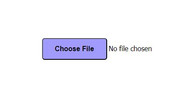
Describe or show an image of what you want your button to look like.
Joe
To see if you are getting the updated menu on your website, when you view it click Ctrl + F5. This will force a reload of the webpage instead of using the cached files for it. If you still don't see it and you have cpanel with your hosting company, check to see if the latest file has been uploaded. Alternatively if the menu bar is used on every page, you may need to reload the whole site.
Danzil wrote:The Video is an MP4 file. the name is "motion background 1097827033"
size: 0.99MB
Length:00:00:07
I don't see and attach option. Only add image to post
It's best to keep your file names simple, no spaces and all in lower case. As you can see in your last post, your have not spelled it correctly. A script will not function with errors.
To this end I renamed your file to motionvid.mp4 and loaded it into the attached file. I pasted the HTML code fragment to the master page, and the video code fragment to
<!--Master A Body Start-->
Download the file and preview it.
Posts found: 76 to 100 of 227